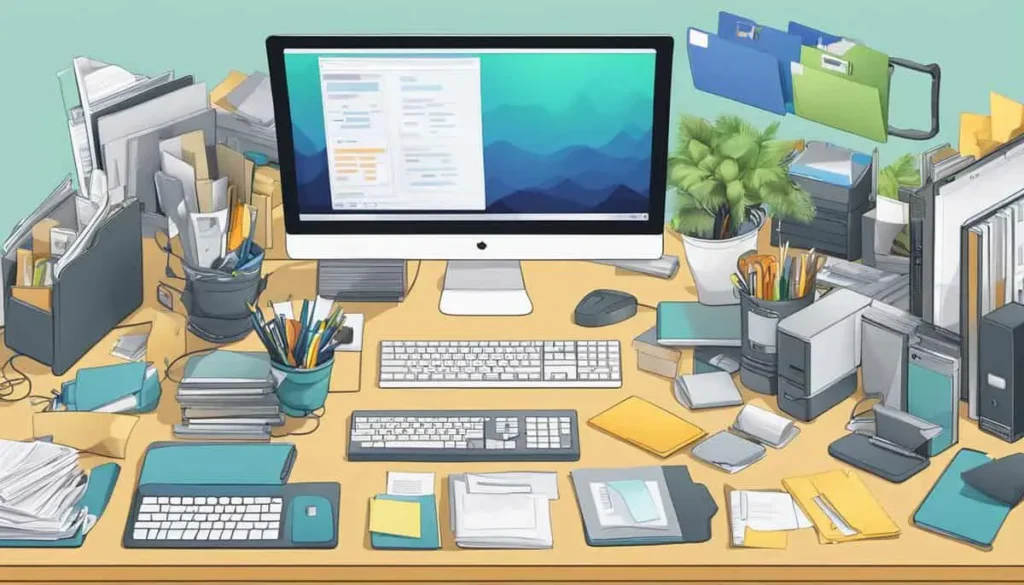
In today’s tech-driven world, digital clutter can be just as stressful and chaotic as physical mess. With countless documents, photos, downloads, and folders piling up across devices, it’s easy to lose track of what’s stored where. Whether you’re a student managing coursework, a professional juggling projects, or simply someone trying to stay on top of personal files, having a streamlined system is essential. Effective digital file organization not only saves time but also boosts productivity and reduces mental load.
Here’s a step-by-step guide to help you create a clean, efficient, and sustainable file management system.
Step 1: Clean the Slate with a File Audit
Before diving into any kind of reorganization, start by assessing the current state of your digital files. This process involves browsing through your folders and identifying files that are no longer needed—duplicates, outdated versions, irrelevant downloads, or random screenshots that serve no purpose. Delete these confidently.
Once you’ve cleared out the obvious clutter, look at what remains. Group similar files together and make note of what categories naturally emerge. This will help you later when you’re creating your new folder structure.
Step 2: Create a Logical Folder Structure
The foundation of good file organization is a clear, consistent folder hierarchy. A solid system is intuitive—you should be able to find what you need in a few clicks without having to rely on your computer’s search function.
Start by creating broad, high-level folders based on general categories like “Work,” “Personal,” “School,” “Finances,” or “Media.” Within each main folder, add subfolders that correspond to specific topics or projects. For example, under “Work,” you might have folders like “Client Projects,” “Invoices,” and “Reports.”
It’s important to choose naming conventions that are both meaningful and easy to scan. Use full words rather than abbreviations, and avoid overly long or complex folder names. Consistency here will pay off over time.
Step 3: Adopt a Consistent File Naming System
Just as folders need structure, individual files should be named consistently and clearly. A good naming convention can save you hours in the long run—especially when you’re trying to distinguish between multiple versions of the same document.
Consider including key details in your filenames, such as the subject, date, and version number. For instance: Marketing_Plan_2025_Q1_v2.docx. This tells you exactly what the file is without needing to open it.
Decide whether to use underscores, hyphens, or camel case—and stick to one style across all files. The goal is not perfection but clarity and predictability.
Step 4: Set Rules for Download Management
One of the fastest ways digital clutter accumulates is in the Downloads folder. Most files land here by default and are rarely moved afterward. Over time, this becomes a dumping ground that’s hard to control.
To prevent this, establish a habit of reviewing your Downloads folder regularly—ideally once a week. Move important files to their proper folders, and delete anything unnecessary.
You can also set your browser or applications to prompt you for a destination folder before downloading, helping you decide where the file belongs upfront.
Step 5: Make Backup a Routine
No matter how well-organized your files are, they’re still vulnerable to data loss from system crashes, accidental deletion, or malware. Having a backup system is non-negotiable.
Use cloud storage services like Google Drive, Dropbox, or OneDrive to automatically back up your key folders. For even better protection, pair cloud backups with an external hard drive or time-based system backup on your computer.
Set reminders to check backups periodically to ensure everything is syncing correctly. A backup is only useful if it works when you need it.
Step 6: Use Search Features Strategically
Even with a great filing system, the search function can still be incredibly useful—especially when you’re working with a large volume of data. Learn how to use your system’s advanced search features, including filters for file types, dates, and keywords.
If you’re on Windows, File Explorer allows you to search by modified date, file extension, or specific phrases. On a Mac, Spotlight Search is equally powerful when used effectively.
Still, don’t rely solely on search to compensate for poor file organization. Think of it as a helpful shortcut, not a replacement for structure.
Step 7: Maintain Your System with Regular Reviews
Once your digital files are organized, the next challenge is maintaining that order. Set aside time—monthly or quarterly—for a “digital cleanup.” Use this time to archive older files, update folder structures if your needs change, and continue deleting what’s no longer needed.
Think of it like tidying a room. If you keep putting things where they belong, the mess won’t return.
Final Thoughts
Managing your digital files doesn’t have to be overwhelming. With a thoughtful approach and some upfront effort, you can transform a chaotic desktop into a clean, efficient workspace that supports your daily routines. Whether you’re looking to reduce stress, speed up your workflow, or simply bring order to your digital life, these steps can help you get there—and stay there.
Start today, and your future self will thank you.

